Introducing Pandas
Pandas is a tool for processing data, that is, a module for processing data by converting various types of data into data frames with rows and columns. For example, converting CSV files or SQL databases into tables.
Converted data frames are organized like tables or spreadsheets. Both rows and columns have indexes, and we can perform tasks individually on rows or columns.
Pandas has the advantage of being able to easily change and manipulate data, which has useful functions for processing missing data, performing tasks on columns and rows, and converting data.
Creating Data with Pandas
In order to get access to the Pandas module, we’ll need to install the module and then import it into a Python file.

After importing Pandas under the name pd easily, what we will do is to turn the data into a data frame format.
DataFrames have rows and columns. Each column has a name, which is a string. Each row has an index, which is an integer. DataFrames can contain many different data types: strings, ints, floats, tuples, etc.
You can pass in a dictionary to pd.DataFrame().
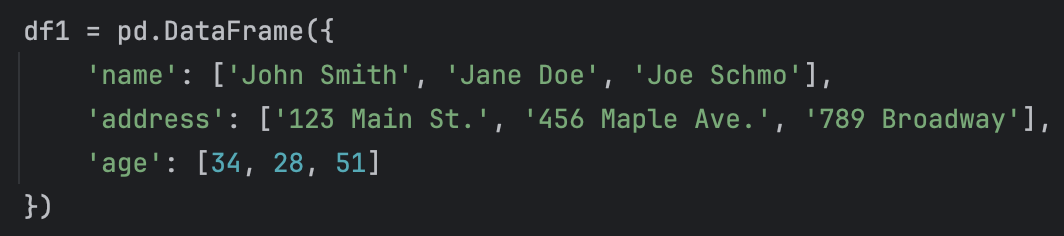
Each key is a column name and each value is a list of column values. The columns must all be the same length or we will get an error.
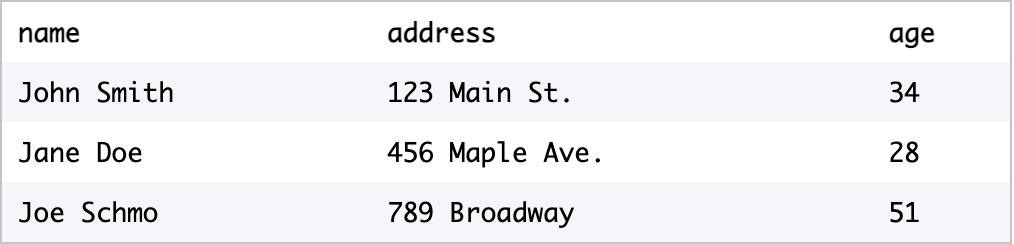
The above command is an example of creating a data frame, and the resulting df1 is as follows.
Alternatively, there is a method of making columns separately as follows without using a dictionary.
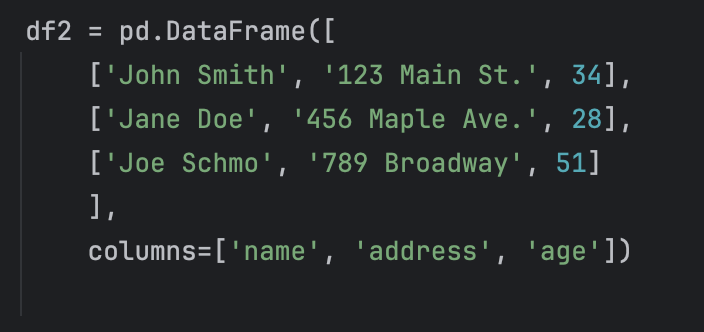
Now we know how to make a data frame.
In this way, we can create our own data frames, but in most cases we will work with large datasets that already exist.
One of the most common forms is the Common Seperated Values (CSV).
Loading Data with Pandas
CSV (comma separated values) is a text-only spreadsheet format.
The first row of a CSV contains column headings. All subsequent rows contain values. Each column heading and each variable is separated by a comma:

When we have data in a CSV, you can load it into a Dataframe in Pandas using .read_csv():

In the example above, the .read_csv() method is called. The CSV file called my-csv-file is passed in as an argument.
We can also save data to a CSV, using .to_csv():

when we load a new DataFrame from a CSV, we want to know what it looks like.
If it’s a small DataFrame, you can display it by typing print(df).
If it’s a larger DataFrame, it’s helpful to be able to inspect a few items without having to look at the entire DataFrame.
The method .head() gives the first 5 rows of a DataFrame. If you want to see more rows, you can pass in the positional argument n.
The method df.info() gives some statistics for each column.
Selecting Data with Pandas
Now we know how to create and load data.
Let’s select parts of those datasets that are interesting or important to our analyses.
Suppose we have the DataFrame called customers, which contains the ages of your customers:
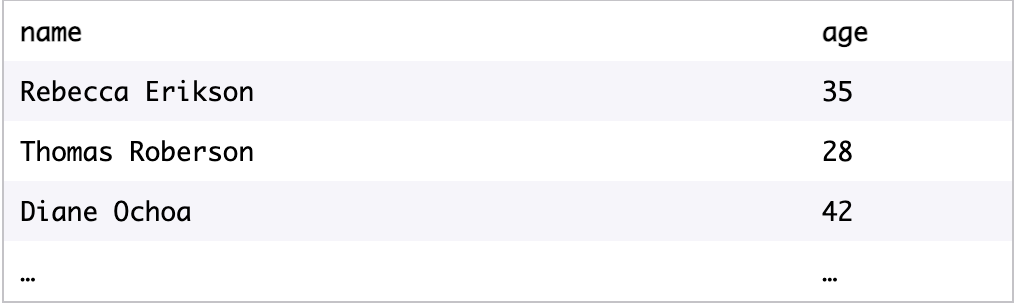
There are two possible syntaxes for selecting all values from a column:
- Select the column as if we were selecting a value from a dictionary using a key. In our example, we would type customers['age'] to select the ages.
- If the name of a column follows all of the rules for a variable name (doesn’t start with a number, doesn’t contain spaces or special characters, etc.), then we can select it using the following notation: df.MySecondColumn. In our example, we would type customers.age.
When we have a larger DataFrame, we might want to select just a few columns.
To select two or more columns from a DataFrame, we use a list of the column names.
new_df = orders[['instance_one', 'instance_two']]
If you want to select a particular row rather than a column, use the iloc[] method.
orders.iloc[2] : It refers to the third row of the order data frame.
we can also select multiple rows from a DataFrame.
Here are some different ways of selecting multiple rows:
- orders.iloc[3:7] would select all rows starting at the 3rd row and up to but not including the 7th row (i.e., the 3rd row, 4th row, 5th row, and 6th row)
- orders.iloc[:4] would select all rows up to, but not including the 4th row (i.e., the 0th, 1st, 2nd, and 3rd rows)
- orders.iloc[-3:] would select the rows starting at the 3rd to last row and up to and including the final row
You can select a subset of a DataFrame by using logical statements:
df[df.MyColumnName == desired_column_value]
Suppose we want to select all rows where the customer’s age is 30. We would use:
df[df.name == 30]
We can also use other logical statements in the same way and combine multiple logical statements, as long as each statement is in parentheses.
For instance, suppose we wanted to select all rows where the customer’s age was under 30 or the customer’s name was “Martha Jones”:
df[(df.age < 30) | df.name == 'Martha Jones')]
Suppose we want to select the rows where the customer’s name is either “Martha Jones”, “Rose Tyler” or “Amy Pond”.
We can use the isin command to check that df.name is one of a list of values:
df[df.name.isin(['Martha Jones', 'Rose Tyler', 'Amy Pond'])]
When we select a subset of a DataFrame using logic, we end up with non-consecutive indices.
This makes it hard to use .iloc().
We can fix this using the method .reset_index(). For example, here is a DataFrame called df with non-consecutive indices:

If we use the command df.reset_index(), we get a new DataFrame with a new set of indices:
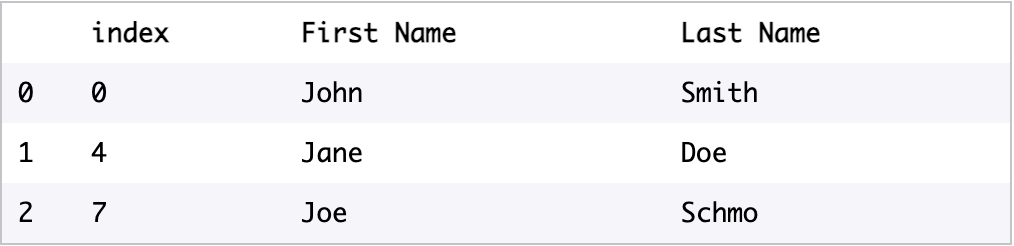
Note that the old indices have been moved into a new column called 'index'. Unless you need those values for something special, it’s probably better to use the keyword drop=True so that you don’t end up with that extra column. If we run the command df.reset_index(drop=True), we get a new DataFrame that looks like this:
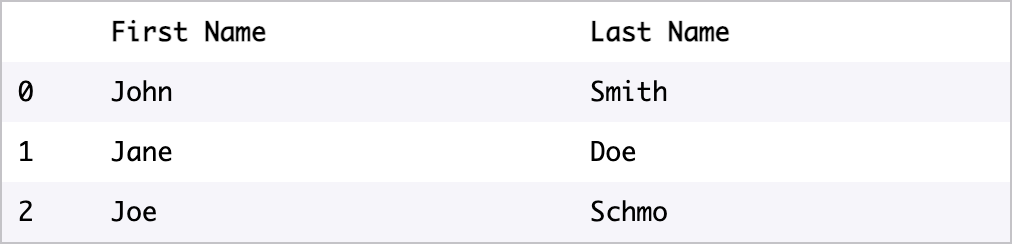
Using .reset_index() will return a new DataFrame, but we usually just want to modify our existing DataFrame. If we use the keyword inplace=True we can just modify our existing DataFrame.
df.reset_index(drop=True, inplace=True)
It helps voiding the creation of a new DataFrame and thus improbing memory efficiency.
'AI > ML' 카테고리의 다른 글
| Modifying DataFrames (0) | 2025.03.25 |
|---|